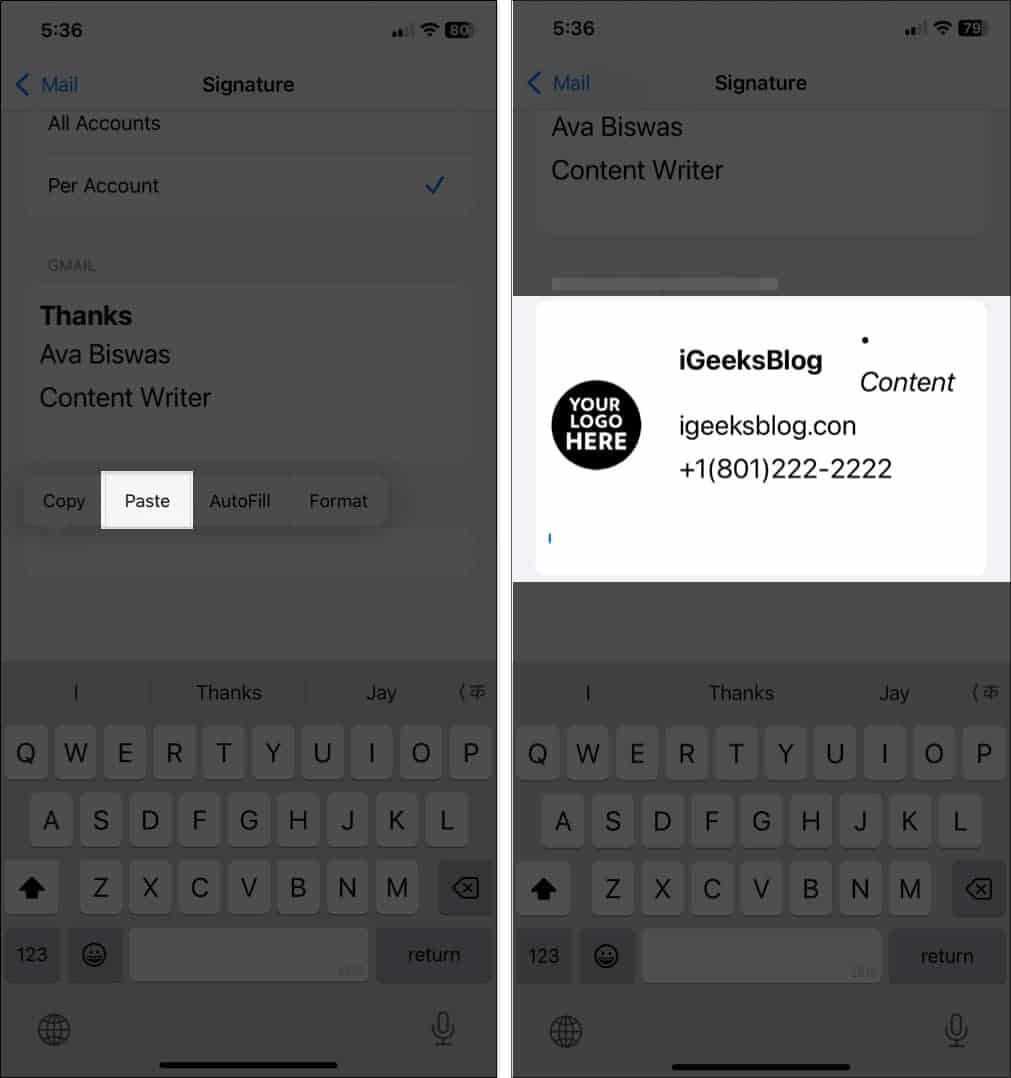
The iPhone Mail app only accepts plain text signatures by default, so getting HTML formatting to stick requires a workaround: copy a rendered version of your signature, paste it into the Signature field, then shake your phone and tap Undo to restore the formatting iOS strips on paste. Which copy method you use depends on whether your signature is hosted online already.
What You Need Before You Start
- Your HTML signature, either hosted online or ready to email to yourself
- An iPhone with Mail set up for your account
- Load Remote Images turned on in Mail settings, if your signature includes images
- Patience for the shake-to-undo step, which can take a couple of attempts
Method 1: Open the Signature Directly in Safari
Use this method if your signature is hosted at a URL, which is the case if it’s already installed on a desktop email client.
- Open Safari on your iPhone and go to the URL where your signature is hosted.
- Tap and hold on the rendered signature until the selection tool appears.
- Drag the selection handles to cover the entire signature, then tap Copy.
- Go to Settings → Mail → Signature.
- Choose Per Account if you want different signatures for different accounts, or leave it as a single signature for all accounts.
- Delete the default “Sent from my iPhone” text.
- Tap in the signature field, then tap Paste.
- Shake your iPhone. When the Undo prompt appears, tap Undo. This step is essential, not optional, and is covered in detail below.
- Exit Settings and check the signature in a new email.
Method 2: Email the Signature to Yourself
Use this method if your HTML signature isn’t hosted anywhere online yet.
- On a computer, paste your rendered HTML signature into the body of a new email.
- Send that email to the account you’re setting up on your iPhone.
- Open the email on your iPhone in the Mail app.
- Tap and hold on the signature until the selection tool appears, then adjust the handles to select the entire signature.
- Tap Copy.
- Go to Settings → Mail → Signature and delete the default text.
- Tap in the signature field and tap Paste.
- Shake your iPhone and tap Undo when the prompt appears.
- Exit Settings and test with a new email.
Why You Need to Shake and Undo
When you paste content into iOS Mail’s signature field, iOS automatically strips most formatting and applies its own default text attributes, which is why a freshly pasted signature often looks like plain, unstyled text. Shaking the phone triggers iOS’s built-in Undo gesture, and because the formatting strip is technically the last “edit” iOS made, Undo reverses it, bringing back the original colours, fonts, and layout from what you copied. If the shake doesn’t trigger an Undo prompt, try again, since the timing window after pasting can be brief.
Troubleshooting HTML Signatures on iPhone Mail
Images aren’t showing
Go to Settings → Mail and check that Load Remote Images is switched on. Without it, iOS won’t display hosted images in any email, including your own signature.
Shake to undo isn’t bringing back formatting
Try pasting again and shaking immediately afterwards. If it’s still not working, the signature may have been copied as plain text in the first place, so go back to the source (Safari or the email) and re-copy it, making sure you’re selecting the rendered signature, not raw HTML.
Signature looks fine on iPhone but different on desktop
This is expected. iOS Mail and desktop clients don’t share a rendering engine, and iOS strips more formatting than most desktop clients tolerate. Keep signature layouts simple, ideally table-based, so they degrade gracefully rather than breaking on either platform.
Different signature needed for work vs personal account
Under Settings → Mail → Signature, choose Per Account rather than the single default option, then repeat the copy-paste-shake process for each account separately.
FAQs
Can I type HTML code directly into the iPhone Mail signature field?
No. The field only accepts plain text or pasted rich content. Typing HTML tags directly will show the literal code as text, not render it as formatting.
Does the shake-to-undo trick work on iPad too?
Yes, the same gesture and Undo behaviour applies on iPadOS Mail.
Why did my signature paste as plain text with no shake-to-undo prompt available?
This usually means too much time passed between pasting and shaking, or the copied content was already plain text rather than rendered HTML. Re-copy the signature and shake immediately after pasting.
Can I use the same signature across iPhone, Mac, and Windows?
Yes, the same HTML file works everywhere, but each platform needs its own install method. This guide covers iPhone; see the separate guides for Outlook Desktop and Apple Mail on Mac.
Setting this up once per device gets old fast if you’re doing it for a whole team. If you need HTML signatures rolled out consistently across everyone’s phones and desktops, get in touch and we’ll handle it properly.
Logo or image disappears after a few days
Keep logos small if you’re adding them this way. Large or high-resolution images can push the pasted content over what iOS reliably retains through the shake-to-undo step, and an oversized logo is a common reason a signature looks fine right after pasting but drops the image later. A logo under 150 pixels wide is a safe starting point for mobile signatures.