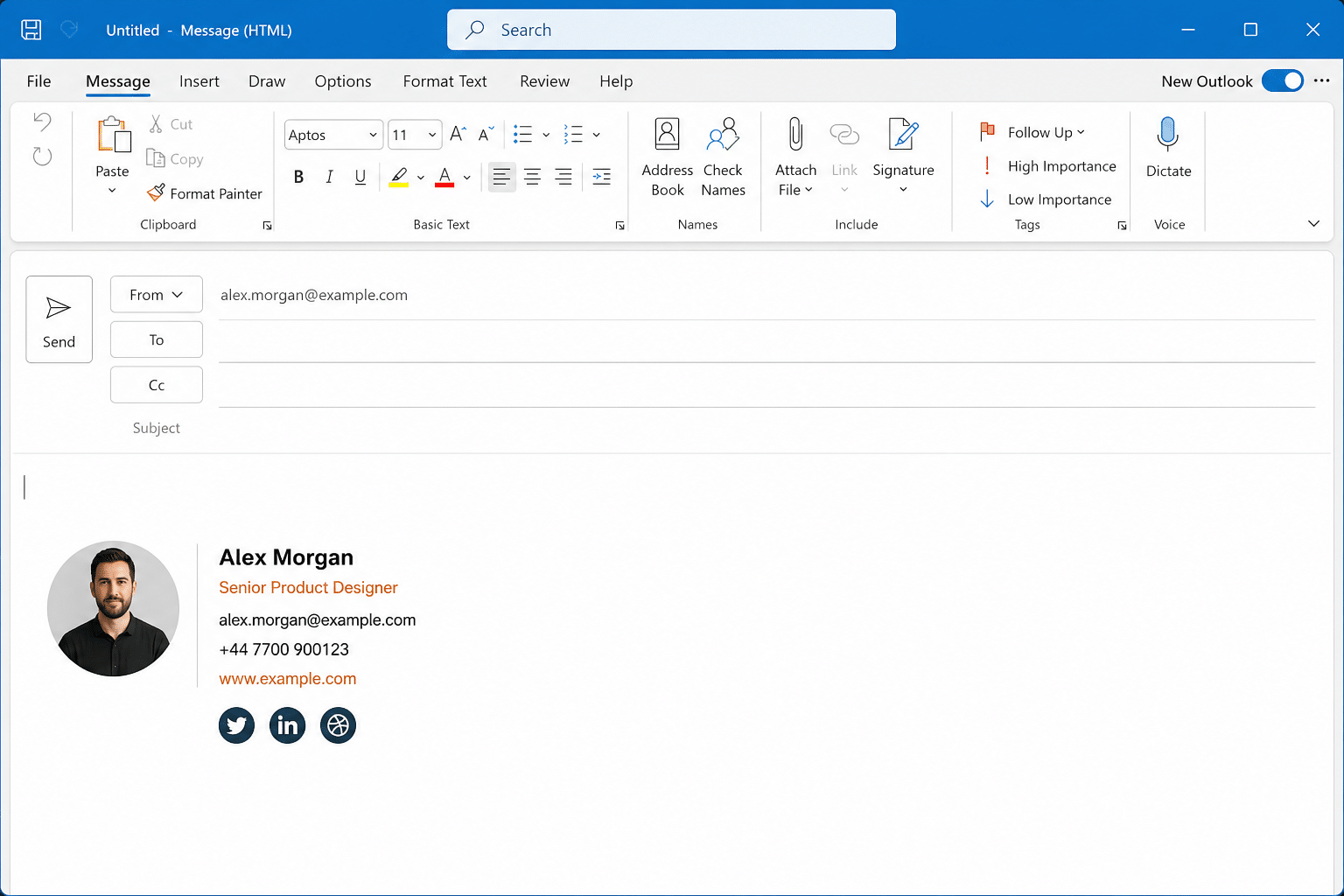
If you’re on classic Outlook, go to File → Options → Mail → Signatures, click New, and paste your HTML signature into the editor. If you’ve been moved to new Outlook, the path is different: Settings (gear icon) → Mail → Compose and Reply. Which version you’re running determines which steps below apply, so check that first if you’re not sure.
What You Need Before You Start
- Your HTML signature code, ready to paste
- Any images in the signature hosted online with absolute URLs (not saved locally on your computer)
- Outlook installed on Windows, either classic or new
- A few minutes, since Outlook’s signature editor doesn’t always paste HTML cleanly on the first try
Classic Outlook or New Outlook? Check This First
Microsoft has been rolling new Outlook out to Windows users gradually since 2023, and it now ships by default on many new installs. The two versions store and edit signatures completely differently, and instructions for one won’t work on the other.
You’re on classic Outlook if you see a traditional ribbon with File, Home, Send/Receive, and Folder tabs across the top, and signatures live under File → Options → Mail → Signatures.
You’re on new Outlook if the interface looks closer to a browser tab, with a gear-shaped Settings icon in the top-right corner, and signatures live under Settings → Mail → Compose and Reply.
If you’re not sure which one you have, look for a toggle labelled “Try the new Outlook” in the top-right corner. If it’s there and switched off, you’re on classic.
How to Add an HTML Signature in Classic Outlook
- Open Outlook.
- Go to File → Options.
- Select Mail from the left-hand menu.
- Click Signatures…
- Click New to create a signature, and give it a name.
- In the signature editor, paste your HTML signature.
- Under “Choose default signature,” assign it to your email account and decide whether it applies to new messages, replies, or both.
- Click OK to save.
If the formatting looks wrong straight after pasting, classic Outlook’s editor is usually the cause, not your HTML. See the formatting fixes below before you start stripping code out of your signature.
How to Add an HTML Signature in New Outlook
- Open new Outlook.
- Click the Settings gear icon in the top-right corner.
- Go to Mail → Compose and Reply.
- Under Signatures, click New signature and name it.
- Paste your HTML signature into the editor.
- Set it as the default for new messages and replies if needed.
- Click Save.
New Outlook’s editor tends to preserve pasted HTML more reliably than classic Outlook, but it still strips some CSS properties, so check the formatting section below if anything looks off.
Fixing Formatting Issues When Pasting HTML Into Outlook
Outlook renders email content using Word’s rendering engine rather than a standard browser engine, which is why signatures that look correct in a code editor or browser preview can shift once they’re in Outlook. This is normal, not a sign your HTML is broken.
If your signature loses formatting on paste, try this workaround: open Notepad, paste your HTML in, copy it straight back out, then paste that into Outlook’s signature editor. This strips hidden formatting your clipboard picked up from wherever the HTML was copied from, which is usually the actual source of the problem.
If formatting is still inconsistent after that, the next step is simplifying the HTML itself. Word’s rendering engine has patchy support for CSS, so background images, margin-based spacing, and non-standard web fonts are the most common casualties. Rebuilding the layout with HTML tables instead of CSS positioning is the most reliable fix, since table-based layouts are what Word’s engine handles best.
Troubleshooting HTML Signatures in Outlook Desktop
Signature turns into an attachment instead of displaying inline
This happens when images are embedded as base64 code rather than linked. Outlook’s rendering engine handles embedded image data poorly and will sometimes convert it to a file attachment. Use hosted image URLs instead, for example https://yourwebsite.com/logo.png, so the image loads from the web rather than being embedded in the signature itself.
Signature looks different to how you designed it
As above, this is Word’s rendering engine, not a fault in your code. Remove background images, margin and padding-heavy CSS, and any font that isn’t web-safe (Arial, Calibri, and Georgia are safe bets), then rebuild spacing using table cells.
Images aren’t loading
Check that every image is hosted online with a full, working URL, not a relative path or a file saved on your computer. Outlook can’t reach local files, and it won’t render an image with a broken or relative link.
Links aren’t clickable
Make sure every link in the HTML uses a full protocol: https:// for web links or mailto: for email addresses. A bare domain or email address without the protocol often won’t render as a clickable link in Outlook.
FAQs
Can I use an HTML signature in Outlook without a paid add-in?
Yes. Outlook’s built-in signature editor accepts pasted HTML directly, in both classic and new Outlook. Add-ins are useful for building the signature design itself, but they’re not required to install one.
Why does my signature look fine in the editor but wrong once I send a test email?
The signature editor and the actual sent email don’t always render identically. Send yourself a genuine test email rather than relying on the editor preview, and check it in the client you’ll actually be receiving replies in.
Can I set a different signature for new emails versus replies?
Yes, both classic and new Outlook let you assign separate signatures (or none) for new messages and for replies and forwards, under the same signature settings screen.
Will my signature carry over if I switch from classic to new Outlook?
Not automatically. New Outlook stores signatures separately, so you’ll need to re-add your HTML signature under Settings → Mail → Compose and Reply after switching.
Setting up branded signatures across a whole team is a different problem to solving it for one inbox. If you need consistent HTML signatures rolled out across your organisation’s email accounts, get in touch and we can help you set it up properly.