If you’re searching for how to restrict your Google Maps API key, you’re already thinking about security — which is a good sign.
By default, Google generates API keys without restrictions. That means anyone who finds your key could potentially use it.
For small businesses, this can lead to:
- Unexpected billing charges
- API abuse
- Service disruption
- Website map errors
This guide explains exactly how to lock down your Google Maps API key properly.
Why Restricting Your API Key Is Critical
An unrestricted API key is public.
If someone copies it from your website’s source code, they could:
- Send automated requests
- Trigger usage charges
- Consume your free monthly credit
- Cause your legitimate traffic to fail
Even low-traffic websites are at risk.
Security restrictions prevent this.
If you haven’t created your key yet, see:
→ How to Create an API Key for Google Maps
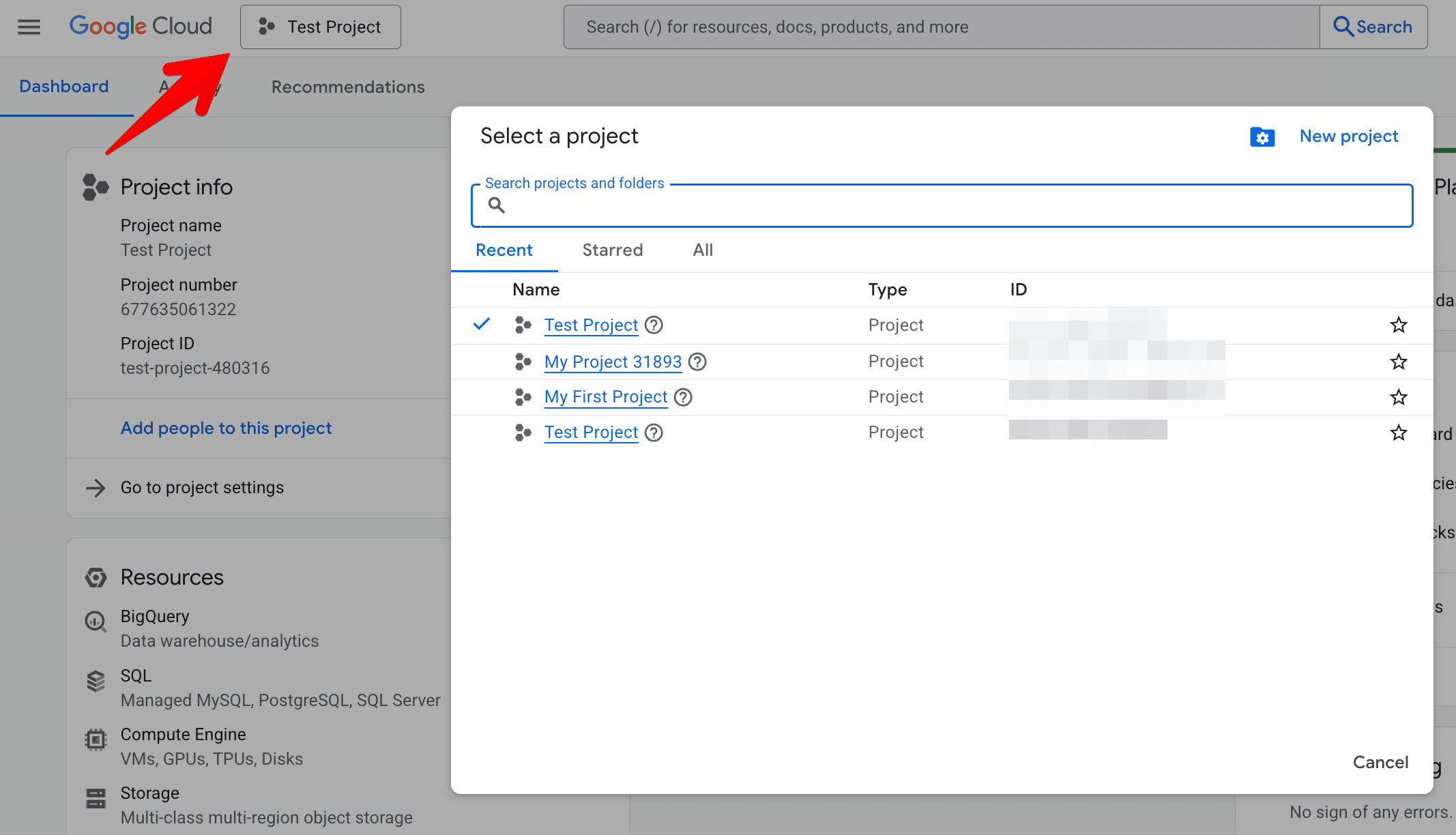
Step 1: Locate Your API Key
Go to:
https://console.cloud.google.com/
Navigate to:
APIs & Services
→ Credentials
Click your existing API key.
If you’re unsure where it is, follow:
→ How to Find Your Google Maps API Key
Step 2: Apply Application Restrictions
This is the most important step.
Under Application restrictions, choose the appropriate type.
HTTP Referrer Restrictions (For Websites)
If your API key is used on a website (WordPress, Shopify or custom build), choose:
HTTP referrers (web sites)
Then add your domain in this format:
https://yourdomain.com/*
https://www.yourdomain.com/*
This ensures:
Only requests coming from your domain can use the key.
For most small businesses, this is the correct setting.
IP Address Restrictions (For Servers)
If your API key is used server-side (e.g., backend geocoding, server scripts), choose:
IP addresses
Add:
- Your server’s public IP address
- Hosting IP (if static)
This restricts usage to requests originating from your server.
Important:
If your hosting provider changes IPs, your API may stop working.
Android App Restrictions
If your API is used inside an Android app, select:
Android apps
You’ll need:
- Package name
- SHA-1 certificate fingerprint
This ensures only your signed Android app can use the key.
iOS App Restrictions
For iOS applications, choose:
iOS apps
You’ll need:
- iOS bundle identifier
This prevents other iOS apps from reusing your key.
Step 3: Apply API Restrictions
Below application restrictions is:
API restrictions
Select:
Restrict key
Then choose only the APIs your project uses, such as:
- Maps JavaScript API
- Places API
- Geocoding API
Do not leave it unrestricted.
This prevents the key from being used with unrelated Google services.
What Happens If You Don’t Restrict Your API Key?
If your key is unrestricted:
- Anyone can reuse it
- Bots can generate artificial traffic
- Your free credit may be consumed
- Billing charges may apply
- Your map may stop working
Security is not optional — especially once billing is enabled.
For cost explanation, see:
→ Is Google Maps API Key Free?
Will Restricting My Key Break My Website?
If done correctly — no.
However, common mistakes include:
- Forgetting to include both www and non-www versions
- Forgetting staging domains
- Forgetting subdomains
- Entering the wrong protocol (http vs https)
Always test your map after applying restrictions.
If your site stops loading maps, review domain entries carefully.
Should You Create Separate Keys for Each Environment?
Yes — best practice is:
- One key for live site
- One key for staging
- One key for development
Each with its own restrictions.
This prevents development traffic from consuming live usage limits.
For agencies or multi-site businesses, project separation improves clarity and security.
Additional Security Best Practices
Beyond restrictions:
- Rotate keys periodically
- Remove unused keys
- Monitor usage monthly
- Avoid embedding keys in public GitHub repositories
- Use environment variables for server-side keys
For official Google guidance, see:
https://developers.google.com/maps/api-security-best-practices
WordPress and Shopify Security Considerations
WordPress
Many plugins expose the key in page source. This is normal.
Restrictions are what protect you — not hiding the key.
Ensure:
- Domain restriction is applied
- Only required APIs are enabled
Shopify
Custom themes embed keys in theme files.
If your domain changes, update HTTP referrer restrictions immediately.
When to Seek Professional Support
Restricting a Google Maps API key is simple in principle — but incorrect configuration can:
- Break maps
- Trigger billing confusion
- Create security gaps
At Arvo, we configure secure API setups for WordPress, Shopify and custom platforms, ensuring:
- Billing is controlled
- Restrictions are correct
- Usage is monitored
- Keys are environment-specific
Secure setup protects your business long-term.
Frequently Asked Questions
How do I find my API key?
What happens if I don’t restrict my API key?
Anyone could reuse it, potentially generating charges or exhausting your usage limits.
Can someone use my API key?
Yes. If it is unrestricted and publicly visible, it can be copied and misused.
Will restricting my key stop my map from working?
Only if configured incorrectly. Proper domain or IP entries will keep it functioning normally.
Should I create a separate key for each environment?
Yes. Separate keys for live, staging and development environments improve security and clarity.
Need secure API integrations? Arvo can configure and protect your Google Maps setup. Contact us today.