If you’re trying to work out how to find Google Maps API key details inside Google Cloud Console, you’re not alone.
Many small business websites use Google Maps for contact pages, store locators or booking systems — especially on WordPress, Shopify and custom-built websites. But when something breaks or needs updating, the first question is usually:
“Where is our API key?”
This guide walks you through exactly where to look, what to check, and how to make sure it’s set up correctly and securely.
Who This Is For
This guide is designed for:
- Small business website owners managing their own site
- Shopify users embedding Google Maps
- WordPress users using map plugins or custom embeds
- Developers inheriting an existing project
- Marketing teams troubleshooting a broken map
If you’re unsure who originally set up your website, this article will help you locate what you need safely.
What Is a Google Maps API Key?
A Google Maps API key is a unique string of characters that allows your website to connect to Google’s mapping services.
It enables features such as:
- Embedded interactive maps
- Custom location styling
- Multiple business markers
- Directions and geolocation
- Store locators
Without a valid key, maps may show errors, load incorrectly, or stop working entirely.
How to Find Your Google Maps API Key in Google Cloud Console
Follow these steps carefully:
Step 1: Log Into Google Cloud Console
Go to:
https://console.cloud.google.com/
Sign in using the Google account that was used to set up your website or hosting.
If you don’t know which account was used, this is often where businesses get stuck. Inherited projects frequently use former staff emails or external developer accounts.
Step 2: Select the Correct Project
At the top of the dashboard, you’ll see a Project Selector dropdown.
Your Google Maps API key is attached to a specific project. If multiple projects exist, check:
- Project names that match your business name
- Projects labelled “Website”, “Maps”, or similar
- Creation dates that align with website launch
Selecting the wrong project is the most common reason businesses can’t locate their key.
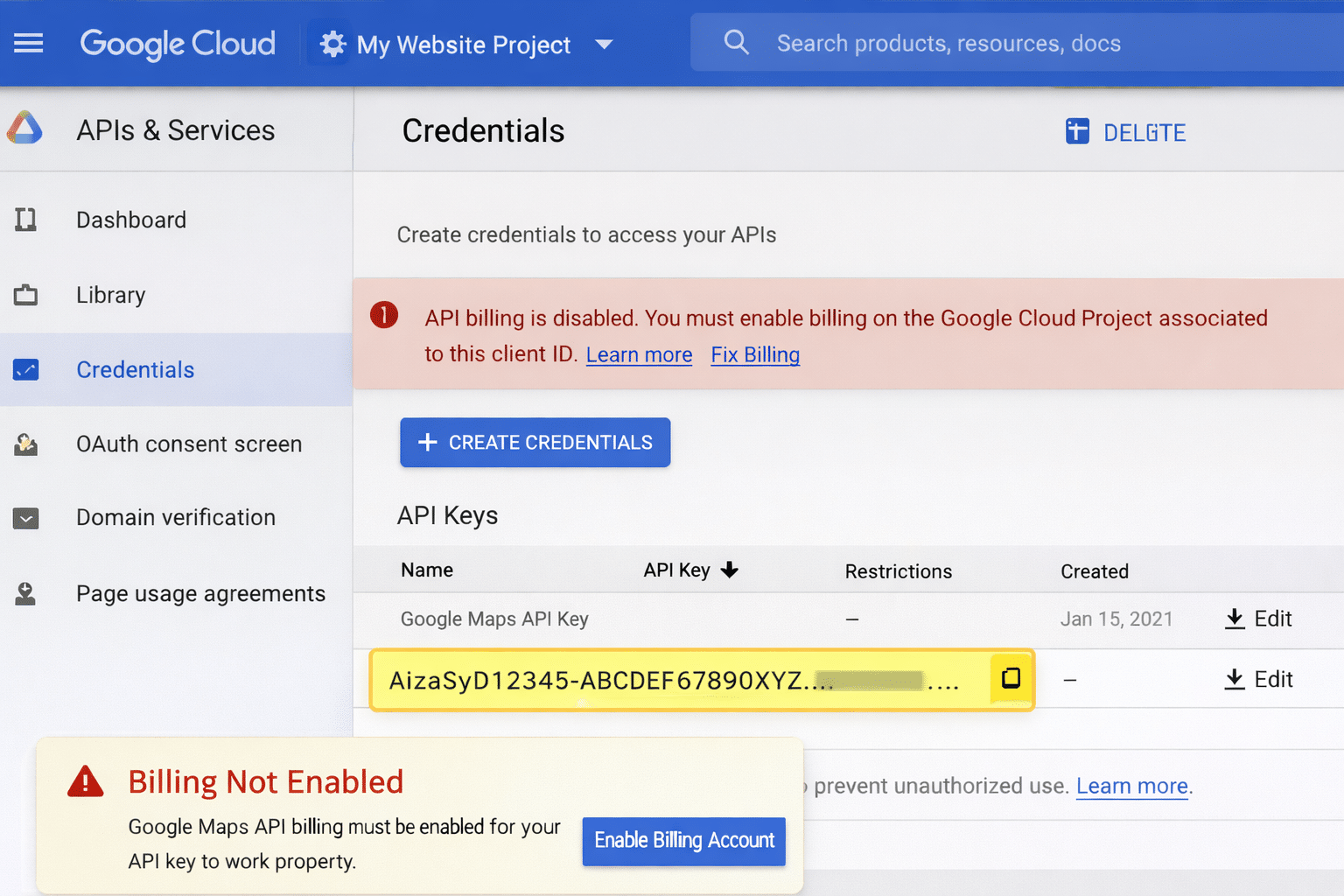
Step 3: Go to APIs & Services → Credentials
In the left-hand menu:
APIs & Services
→ Credentials
Under “Credentials”, you’ll see a list of:
- API Keys
- OAuth Client IDs
- Service Accounts
Your Google Maps API key will appear under API Keys.
It will look like a long string beginning with:
AIza…
What If You See Multiple API Keys?
It’s common to see more than one key.
Each key may have:
- Different restrictions
- Different usage histories
- Different creation dates
Click into each key to review:
- Application restrictions (HTTP referrers or IP addresses)
- API restrictions (Maps JavaScript API, Geocoding API, etc.)
If you’re unsure which key your website uses, your developer tools or plugin settings will usually show the key currently embedded.
How to Create a Google Maps API Key
If you cannot find an existing key, you may need to create one.
We’ve covered this step-by-step in our supporting guide:
→ How to Create a Google Maps API Key
Creating a new key is straightforward, but correct configuration is critical to avoid billing issues or security risks.
Understanding Billing Before You Panic
Google Maps API is not fully “free” anymore.
Google provides a monthly credit, and most small business websites fall well within it. However, billing must still be enabled inside Google Cloud.
If billing is not active, your map may display errors such as:
“This page can’t load Google Maps correctly.”
For a full breakdown, read:
→ Is Google Maps API Free? Billing Explained
This explains what triggers charges and how to monitor usage safely.
Why Restricting Your API Key Matters
One of the biggest mistakes we see is unprotected API keys.
If your key is unrestricted, anyone can copy it and use it — potentially generating unexpected charges.
You should always apply:
- HTTP referrer restrictions (limit to your domain)
- API restrictions (limit to required services only)
We explain this fully here:
→ How to Restrict Your Google Maps API Key
Security is not optional. Especially for small businesses without dedicated IT teams.
Why Your Google Maps API Might Not Be Working
If you’ve located your key but your map still isn’t loading, common causes include:
- Billing not enabled
- API not activated (e.g., Maps JavaScript API disabled)
- Incorrect domain restrictions
- Exceeded usage limits
- Key copied incorrectly
- Plugin conflicts (WordPress)
- Theme conflicts (Shopify custom themes)
Each of these requires a slightly different fix.
This is where practical implementation matters. The issue is rarely just “the key” — it’s usually configuration.
Do You Need a Separate API Key for Each Website?
Technically, you can reuse a key across multiple websites.
However, best practice is:
- One project per website
- One restricted key per domain
This keeps usage clean, secure, and easier to troubleshoot.
For agencies or businesses managing multiple brands, separation reduces risk and simplifies billing tracking.
Can You Create a New API Key If You Can’t Find the Old One?
Yes.
But before doing so, confirm:
- Whether the existing key is still active
- Whether billing is attached to a specific Google account
- Whether the previous key has usage history
Creating duplicate keys without understanding project structure can cause confusion later.
If access to the original Google account is lost, recovery steps may be required.
Practical Tips for WordPress and Shopify Users
WordPress
- Many themes and plugins (Elementor, WPBakery, map plugins) require the key to be pasted into settings
- Ensure the key matches the correct domain restriction
- Clear caching after updating
Shopify
- Custom themes often embed the key in theme.liquid files
- Third-party apps may require separate configuration
- Domain changes must be reflected in restrictions
Custom builds require developer-level verification inside code repositories.
When to Get Professional Help
Finding the key is one step.
Ensuring it is:
- Properly restricted
- Billing-optimised
- Secure
- Correctly integrated
- Not duplicated across environments
…is where many businesses benefit from expert oversight.
At Arvo, we regularly help small businesses recover access, restructure Google Cloud projects, and implement secure API setups across WordPress, Shopify and custom platforms.
Further Reading
For official Google documentation, see:
https://developers.google.com/maps/documentation/embed/get-api-key
Frequently Asked Questions
How do I create an API Key for Google Maps?
See our full step-by-step guide: How to Create a Google Maps API Key.
Can I create a new API key if I can’t find mine?
Yes, but ensure billing and project structure are reviewed first to avoid duplication or access issues.
Why is my Google Maps API not working?
Common reasons include disabled billing, missing API activation, incorrect restrictions, or plugin conflicts.
Do I need a separate API key for each website?
It is best practice to use separate restricted keys per website for security and billing clarity.
Is Google Maps API free?
Google provides a monthly credit, but billing must be enabled. See our billing breakdown.
Need help locating or securing your Google Maps API key? Contact Arvo for professional API setup and website integration support.