If you’re wondering how to create an API key for Google Maps, you’re likely setting up a contact page, store locator, booking system or custom map feature on your website.
Whether you’re using WordPress, Shopify or a custom build, the process happens inside Google Cloud Console.
This guide walks you through it clearly — without developer jargon — and explains billing, security and practical setup considerations.
Before You Start
To create a Google Maps API key, you’ll need:
- A Google account
- Access to Google Cloud Console
- A billing account (credit card required)
Even though Google provides a free monthly credit, billing must be enabled. If you’re unsure about costs, see:
→ Is Google Maps API Key Free?
Step 1: Log Into Google Cloud Console
Go to:
https://console.cloud.google.com/
Sign in using your Google account.
If your website was built by a developer or agency, confirm you’re using the correct business account — not a former employee’s email.
Step 2: Create or Select a Project
At the top of the dashboard, click the Project Selector.
You can:
- Select an existing project
- Or click New Project
Best practice for small businesses:
Create one project per website.
This keeps billing, API usage and permissions organised.
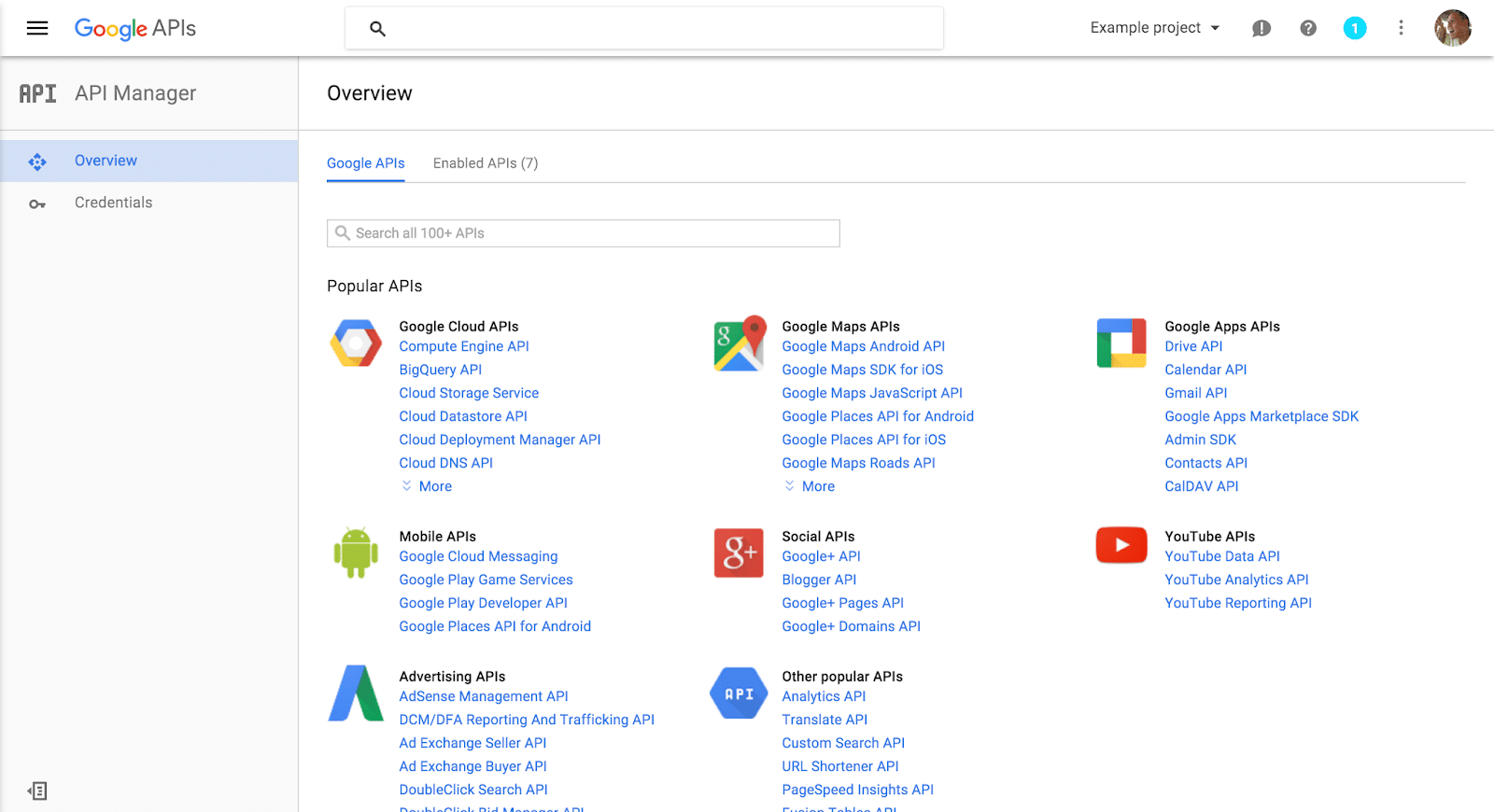
Step 3: Enable the Required APIs
Your API key won’t work unless the correct APIs are activated.
Navigate to:
APIs & Services
→ Library
For most websites, enable:
- Maps JavaScript API
- Places API (if using search/autocomplete)
- Geocoding API (if converting addresses)
Click into each API and press Enable.
Without this step, your key will generate errors later.
Step 4: Enable Billing
Go to:
Billing
→ Link a billing account
You’ll need to:
- Add a credit card
- Confirm billing profile details
Remember:
The API key is free to generate, but billing must be active.
If billing isn’t enabled, you may see:
“This page can’t load Google Maps correctly.”
Step 5: Create the API Key
Now create the key itself.
Go to:
APIs & Services
→ Credentials
Click:
- Create Credentials
→ API Key
Google will instantly generate a long string beginning with:
AIza…
That is your Google Maps API key.
Copy it securely.
Step 6: Restrict Your API Key (Critical Security Step)
By default, your new key is unrestricted.
This means anyone could copy and misuse it.
Click your newly created key and apply:
Application restrictions:
- HTTP referrers (recommended for websites)
- Add your domain (e.g. https://yourdomain.com/*)
API restrictions:
- Restrict to specific APIs you enabled
We explain this in detail here:
→ How to Restrict Your Google Maps API Key
This step protects your business from unexpected charges.
Step 7: Add the API Key to Your Website
Where you paste the key depends on your platform.
WordPress
- Theme settings panel
- Page builder (Elementor, WPBakery)
- Dedicated map plugin settings
Clear cache after adding.
Shopify
- Theme settings
- theme.liquid file (developer access)
- Third-party map apps
If you change domains, update your API restrictions.
Custom Builds
Your developer will add the key into your site’s JavaScript configuration.
Common Mistakes to Avoid
Many small businesses run into issues because:
- Billing wasn’t enabled
- APIs weren’t activated
- Restrictions weren’t applied
- The wrong project was selected
- The key was copied incorrectly
Most errors are configuration issues — not Google problems.
Can You Create Multiple API Keys?
Yes.
You can create multiple API keys inside one project.
Reasons to do this:
- Separate staging vs live websites
- Separate domains
- Separate applications
- Testing environments
However, keep your setup organised to avoid confusion.
How to Find Your API Key Later
If you misplace your key, you don’t need to create a new one immediately.
You can locate it inside:
APIs & Services
→ Credentials
See our full walkthrough here:
→ How to Find Your Google Maps API Key
Why Does Google Require a Credit Card?
Google requires billing to:
- Prevent abuse
- Support scalable usage
- Automatically charge if limits are exceeded
Most small business websites stay within the free credit — but proper restrictions ensure this remains true.
When to Get Professional Help
Creating the key is straightforward.
Setting it up securely and efficiently is where experience matters.
At Arvo, we help businesses:
- Structure Google Cloud projects properly
- Configure billing safely
- Restrict API keys correctly
- Integrate Maps into WordPress, Shopify and custom platforms
- Troubleshoot map errors quickly
Secure setup prevents cost surprises and downtime.
Frequently Asked Questions
How do I find my API key later?
See our guide: How to Find Your Google Maps API Key.
Is Google Maps API key free?
It’s free to generate, but billing must be enabled. See: Is Google Maps API Key Free?.
Why do I need a credit card?
Google requires billing to validate accounts and process usage beyond the free credit.
Should I restrict my API key?
Yes. Always restrict by domain and API. See: How to Restrict Your Google Maps API Key.
Can I create multiple API keys?
Yes. You can create separate keys for staging, live environments or multiple domains.
Need help integrating Google Maps into your website? Contact Arvo for secure API setup and implementation.