
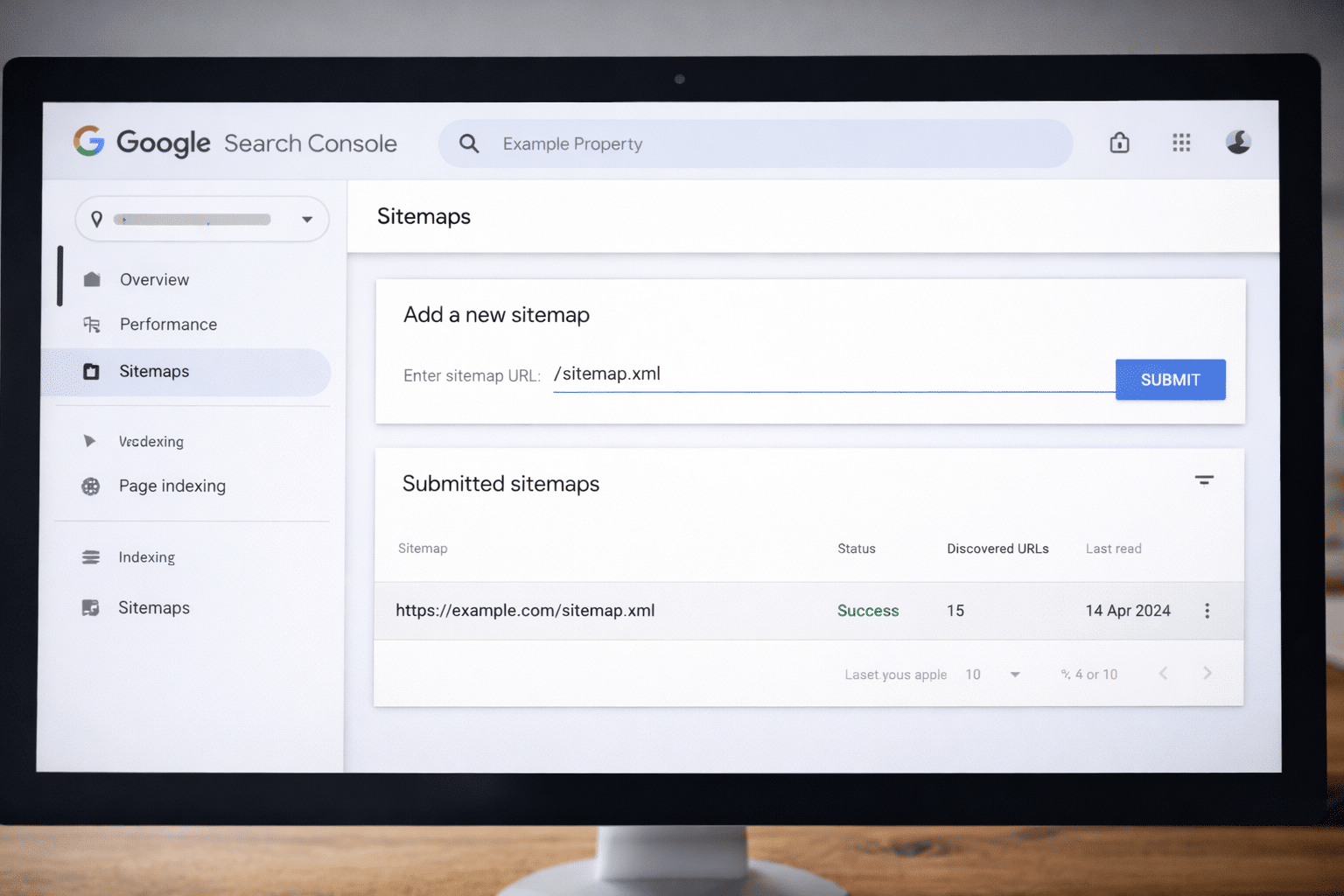
If you’ve already located your sitemap, the next step is understanding how to upload sitemap to Google Search Console correctly.
Submitting your sitemap helps Google discover your pages faster and crawl your website more efficiently. While it doesn’t guarantee indexing, it significantly improves clarity and crawl structure — especially for new or growing websites.
In this guide, we’ll walk through:
- Where to find your sitemap URL
- Sitemap requirements
- How to submit it inside Search Console
- How to monitor status and fix errors
Before You Begin: Make Sure You Have Your Sitemap URL
To submit your sitemap, you’ll need the correct URL.
If you haven’t already located it, here’s how to find your sitemap URL.
Common sitemap locations include:
- /sitemap.xml
- /sitemap_index.xml
Once confirmed, ensure:
- It loads without errors
- It does not return a 404
- It does not contain “noindex” pages
- It reflects your current live site
Submitting an outdated or broken sitemap can cause crawl inefficiencies.
Sitemap Requirements Google Recommends
Before submission, your sitemap should:
- Be in XML format
- Contain only canonical URLs
- Include no blocked or noindex pages
- Use correct HTTPS formatting
- Be under 50MB (uncompressed)
Google provides detailed documentation on sitemap best practices via its Search Central guidelines.
Clean structure matters — messy sitemaps slow indexing rather than improve it.
Step-by-Step: How to Submit a Sitemap in Search Console
Here is the exact process.
Step 1: Log Into Google Search Console
Access your verified property in Google Search Console.
If you haven’t verified your site yet, you’ll need domain ownership verification first.
Step 2: Navigate to “Sitemaps”
In the left-hand menu, click:
Indexing → Sitemaps
You’ll see:
- A field to enter your sitemap URL
- A history of submitted sitemaps
- Status indicators
Step 3: Enter Your Sitemap URL
Enter only the part after your domain.
For example, if your sitemap is:
https://example.com/sitemap.xml
You would enter:
sitemap.xml
Then click “Submit.”
Step 4: Check Submission Status
After submission, Google will display:
- Success
- Couldn’t fetch
- Has errors
- No URLs detected
If successful, Google will begin crawling the URLs listed.
Remember — crawling does not equal indexing.
How Long Does It Take After Submission?
Submitting your sitemap does not result in instant rankings.
It simply signals to Google that your URLs are ready for crawling.
If you’re unsure about expectations, review how long indexing usually takes for new websites.
Typically:
- Crawling may begin within days
- Indexing may take 1–3 weeks
- Larger sites may take longer
Patience combined with correct setup is key.
How to Monitor Sitemap Performance
Once submitted, check:
- “Pages” report
- “Sitemaps” report
- Coverage issues
Watch for:
- Excluded pages
- Crawled but not indexed
- Discovered but not indexed
- Blocked by robots.txt
These insights help diagnose common indexing issues early before they impact visibility.
Common Sitemap Submission Errors
Here are frequent issues businesses encounter:
1. Couldn’t Fetch
Usually caused by:
- Incorrect URL
- Hosting restrictions
- Firewall blocks
- Temporary server downtime
Sitemap Contains Errors
Often due to:
- Broken URLs
- Redirect chains
- Non-canonical URLs
- Noindex pages included
No URLs Detected
This may indicate:
- Improper XML formatting
- Empty sitemap file
- CMS misconfiguration
If these issues persist, reviewing common indexing issues can help identify deeper technical problems.
Sitemap vs Manual URL Inspection: What’s the Difference?
Submitting a sitemap informs Google about your entire site structure.
However, if you need immediate attention for a single page, you may choose to submit a sitemap instead of relying solely on manual indexing — or use both strategically.
Manual URL Inspection is ideal for:
- Newly published blog posts
- Updated landing pages
- Critical service pages
But sitemap submission remains foundational for structured crawling.
When to Seek Technical Support
If your sitemap:
- Is repeatedly rejected
- Shows ongoing crawl errors
- Doesn’t update automatically
- Contains conflicting signals
The issue is rarely “just indexing.”
It’s usually related to:
- CMS configuration
- Hosting environment
- Canonical setup
- Robots directives
Because Arvo integrates web development, AWS-backed hosting, and technical SEO, we frequently assist businesses in diagnosing crawl and sitemap problems as part of our broader digital services in Brisbane and across Australia.
If you’re unsure whether your sitemap is helping or harming your indexing, structured technical review can prevent long-term visibility loss.
Need help configuring Search Console or fixing sitemap errors? Our SEO team can assist.
Frequently Asked Questions
Where do I find my sitemap URL?
Most websites use /sitemap.xml or /sitemap_index.xml. You can also check your robots.txt file.
How often should I update my sitemap?
If your CMS auto-generates it, updates happen automatically when content changes. Manual sitemaps should be updated whenever URLs are added or removed.
What if Google rejects my sitemap?
Check for formatting errors, incorrect URLs, blocked pages, or server issues. Search Console usually provides error details.
Does submitting a sitemap guarantee indexing?
No. It improves crawl discovery but Google still evaluates content quality and technical structure before indexing.