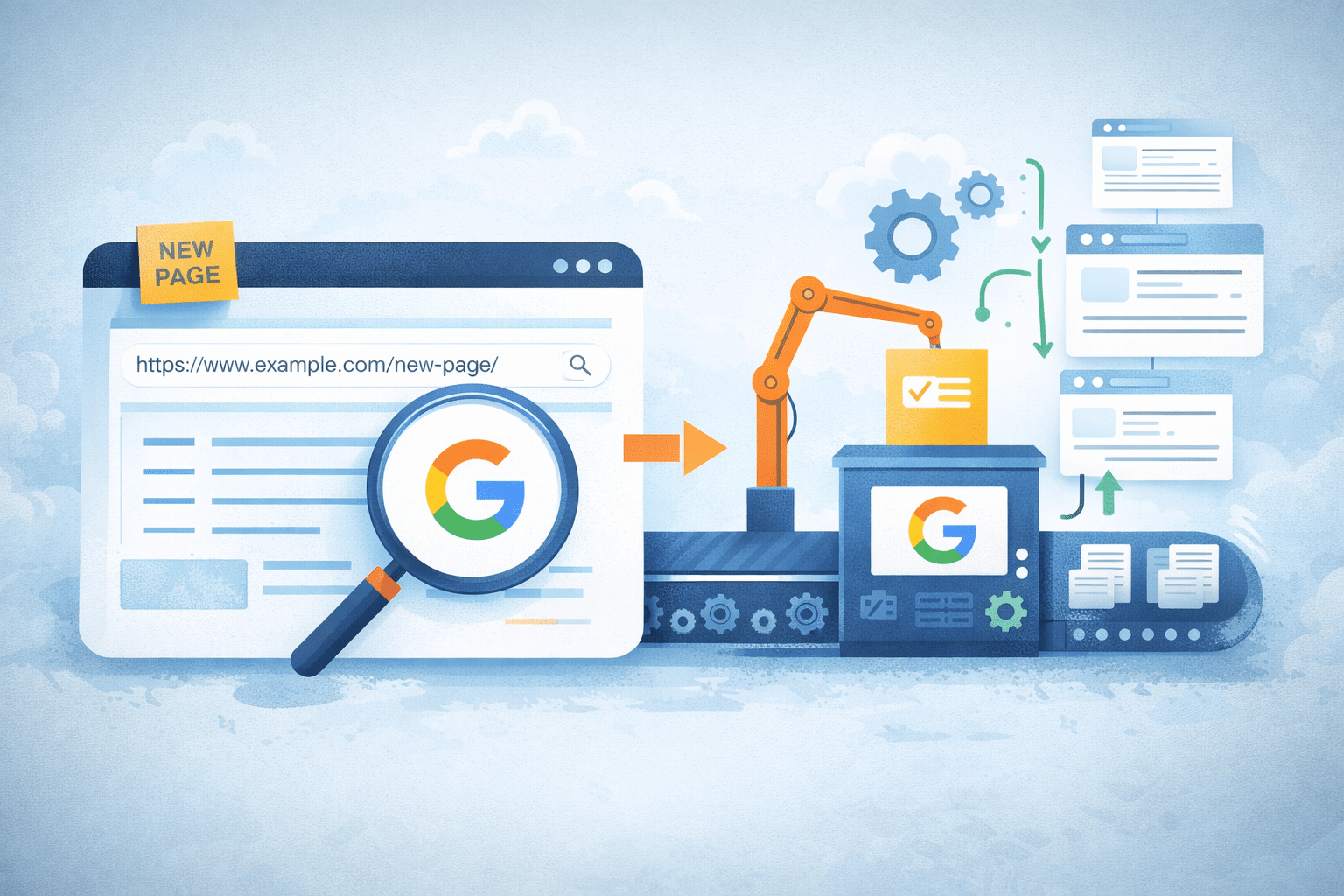
If you’ve published a new page and it isn’t appearing in search results, you’re likely wondering how to index page on Google console manually.
While Google eventually discovers most pages through crawling, there are situations where you need faster visibility or confirmation that your page is eligible for indexing.
In this guide, we’ll walk through:
- When to request indexing
- How to use the URL Inspection tool
- What indexing status messages mean
- Common indexing errors
- When manual requests won’t fix the issue
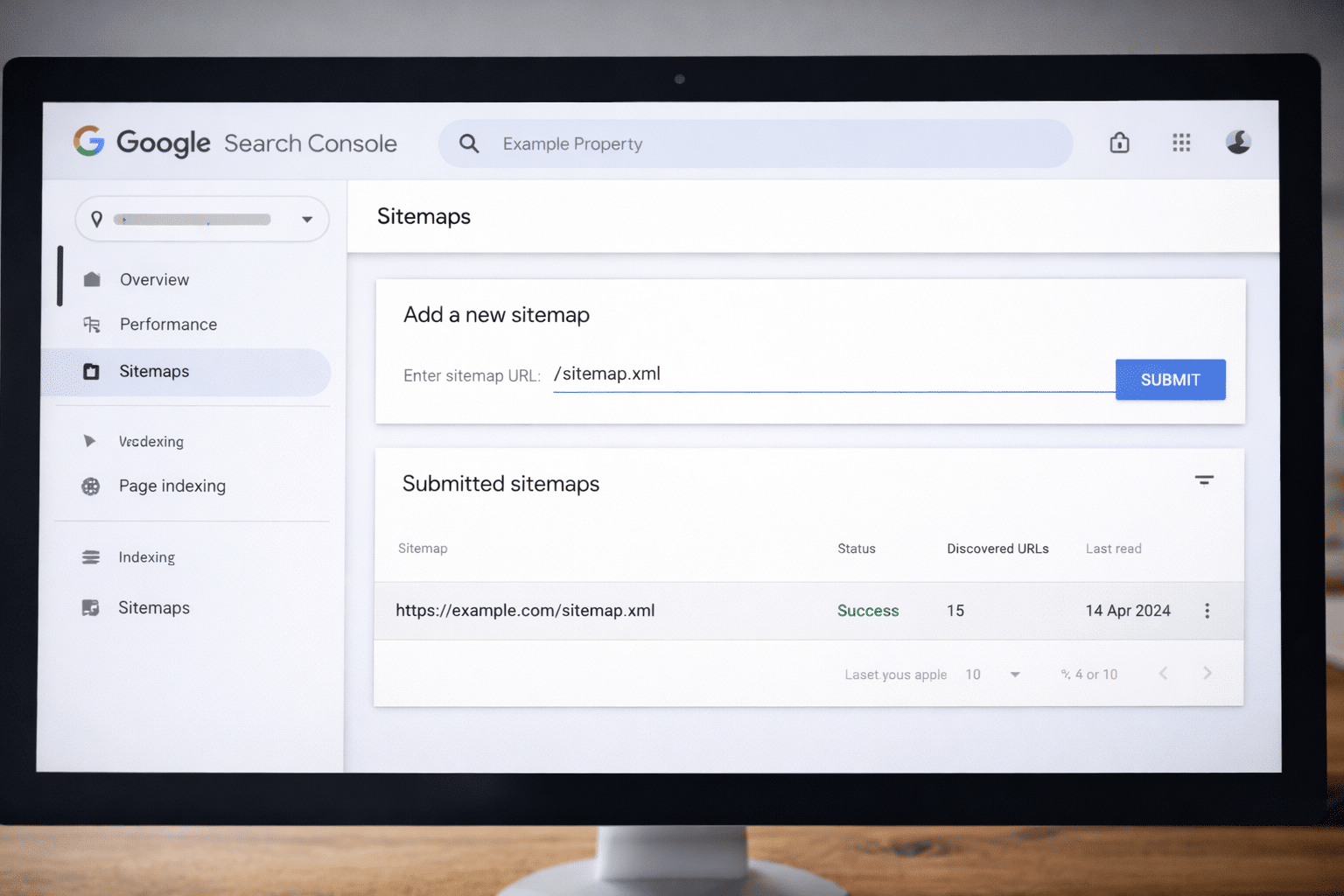
Sitemap Submission vs Manual Indexing
Before requesting indexing manually, it’s important to understand the difference.
Submitting a sitemap instead provides Google with structured access to all your URLs.
Manual indexing, on the other hand, is page-specific. It’s best used for:
- Newly published pages
- Recently updated pages
- High-priority landing pages
- Time-sensitive content
Both methods can work together strategically.
Step-by-Step: How to Request Indexing in Search Console
Here’s the exact process.
Step 1: Open Google Search Console
Log into your verified property inside Google Search Console.
Ensure you are using the correct property (domain vs URL prefix).
Step 2: Use the URL Inspection Tool
At the top search bar, paste the full URL you want indexed.
Press Enter.
Search Console will display the current indexing status.
Step 3: Review the Status
You may see:
- URL is on Google
- URL is not on Google
- Crawled – currently not indexed
- Discovered – currently not indexed
- Blocked by robots.txt
- Excluded by ‘noindex’ tag
If the URL is not indexed but eligible, you’ll see a button labelled:
Request Indexing
Step 4: Click “Request Indexing”
After clicking, Google performs a live test.
If no blocking issues are found, the page enters a crawl queue.
This does not guarantee indexing — it simply accelerates review.
How Long Does Request Indexing Take?
After submitting a request:
- Crawling can occur within hours or days
- Indexing may take several days to weeks
If you’re unsure what’s considered normal, review typical indexing timeframes for context.
Repeatedly requesting indexing does not speed things up and can be counterproductive.
Understanding Indexing Status Messages
Search Console provides diagnostic signals. Here’s what they mean.
Crawled – Currently Not Indexed
Google has reviewed the page but decided not to index it yet.
Possible reasons:
- Thin content
- Duplicate content
- Low perceived value
- Quality evaluation delay
Discovered – Currently Not Indexed
Google knows the page exists but hasn’t crawled it yet.
Often caused by:
- Weak internal linking
- Large site structure
- Crawl budget prioritisation
URL Is Not on Google
This may indicate:
- Noindex tag
- Canonical pointing elsewhere
- Blocked by robots.txt
- Redirecting URL
When Manual Indexing Won’t Work
Manual indexing requests cannot override technical barriers.
If your page contains:
- A noindex meta tag
- A canonical to another URL
- A robots.txt block
- Server errors
- Soft 404 signals
Google will not index it.
In those cases, you need to investigate why your website may not be indexing before requesting again.
How to Improve Indexing Eligibility
If your page isn’t being indexed, focus on:
- Strong internal linking
- Clear page purpose
- Unique, high-quality content
- Fast hosting performance
- Correct canonical setup
Google indexes pages it perceives as valuable and crawl-efficient.
Indexing is a result of quality and technical alignment — not just button clicks.
Can You Index Multiple Pages at Once?
Search Console only allows manual inspection per URL.
For multiple pages:
- Ensure your sitemap is updated
- Improve internal linking
- Remove technical blockers
Sitemap submission remains the scalable method for indexing large numbers of pages.
Common Reasons Pages Fail to Index
Across SMB and startup websites, the most common issues we encounter include:
- Developer staging settings left active
- CMS “discourage search engines” options enabled
- Duplicate page variations
- Slow shared hosting
- Inconsistent canonical URLs
Because Arvo integrates website development, hosting (including AWS-backed environments), and technical SEO, we frequently identify indexing issues that originate outside Search Console itself.
If you’re unsure whether your indexing delay is normal or technical, structured diagnosis can save weeks of lost visibility.
If your pages still aren’t indexing, our technical SEO team can investigate further as part of our broader digital services in Brisbane and Australia-wide.
Frequently Asked Questions
How long does request indexing take?
Crawling may occur within hours or days. Indexing decisions can take several days to a few weeks depending on quality signals.
Why does Google say URL is not on Google?
Common causes include noindex tags, canonical issues, robots.txt blocks, or low-quality content signals.
Can I index multiple pages at once?
Not manually. You must inspect each URL individually. For bulk indexing, rely on sitemap submission and internal linking.
Does requesting indexing guarantee rankings?
No. Indexing only means a page is eligible to appear in search results. Rankings depend on relevance, authority, and competition.