
It is a common belief that you must have a Gmail address before you can access Google services, but that is not the case. You can create a Google Account without Gmail, using your chosen existing email. Google lets you sign up using any email address, including a business domain, Outlook, Hotmail, Yahoo or iCloud.
This guide shows you how to create a Google Account without a Gmail address and explains why this approach is helpful for business owners, agencies and internal teams who want clearer and more controlled access to their Google tools.
Why Create a Google Account Without Gmail?
There are clear benefits to using your existing email instead of a Gmail address. Many businesses prefer to keep all platform logins tied to their own domain. This keeps ownership stable and avoids confusion later when staff or contractors change.
Here are the main reasons clients choose this method:
- You can keep using your primary work email
- You avoid managing an extra inbox
- You keep your Google access aligned with your brand
- You reduce permission confusion when adding agencies
- You support cleaner security and account recovery
- You avoid sharing personal Gmail addresses for business use
This approach gives you full access to all major Google tools. These include Google Analytics, Google Search Console, Google Business Profile, Google Ads and Google Tag Manager.
Creating a Google Account Without Gmail: A Guide
The steps below walk you through the full process, following Google’s verified guide.
Step 1. Navigate to the Official Google Account Creation Page
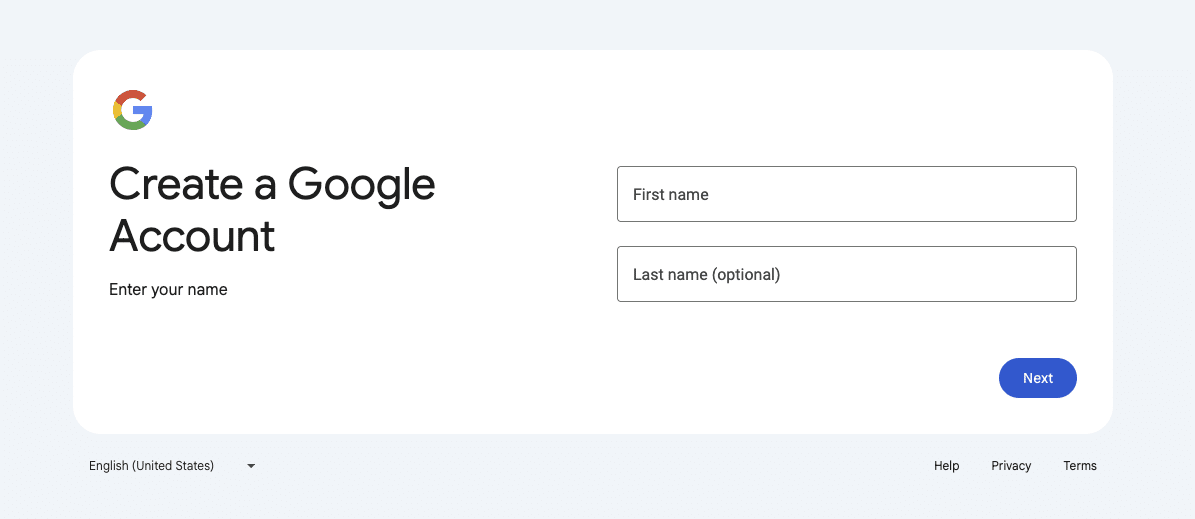
Head to the Google account creation page: Create a Google Account. Google will ask for your first name, surname and date of birth.
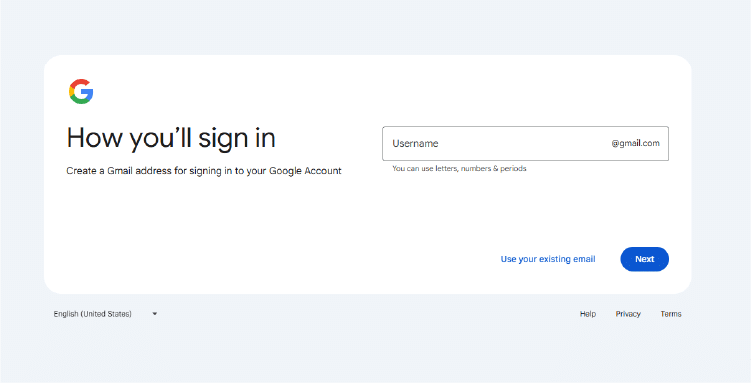
Step 2. Select Use Your Existing Email
This is the key step. Instead of creating a new Gmail address, on the left of the ‘next button’, click Use your existing email.
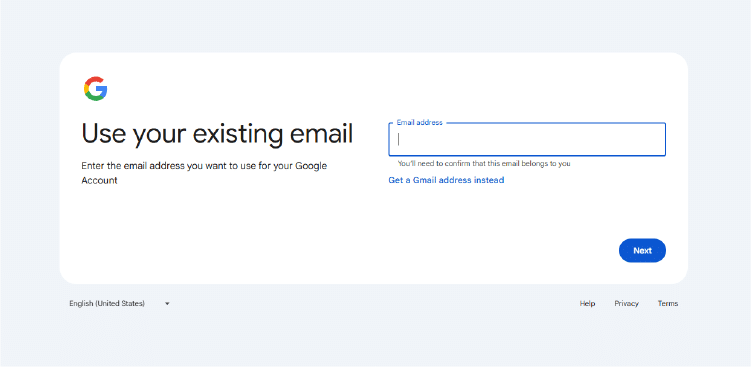
Step 3. Enter the Email You Want to Use
Type the email address you want to register. This can be any non-Gmail address such as:
- yourname@business.com
- Outlook
- Hotmail
- Yahoo
- iCloud
- A hosted business domain
Make sure you have access to this inbox because Google will send a verification code.
Step 4. Enter the Verification Code Sent to Your Email
Google will send a six digit code to the email you entered.
Open your inbox, copy the code and paste it into the verification screen. This step confirms that you own the email address.
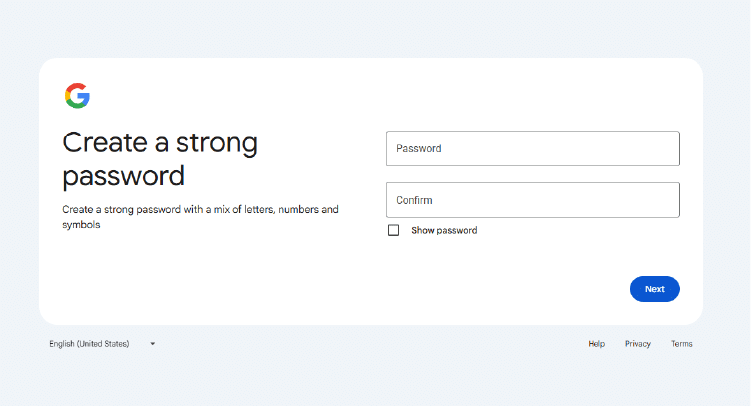
Step 5. Create a Password
Google will ask you to create a secure password.
Step 6. Add a mobile number
Provide your phone number for account verification. Google will then prompt a security code sent to the mobile number you provide.
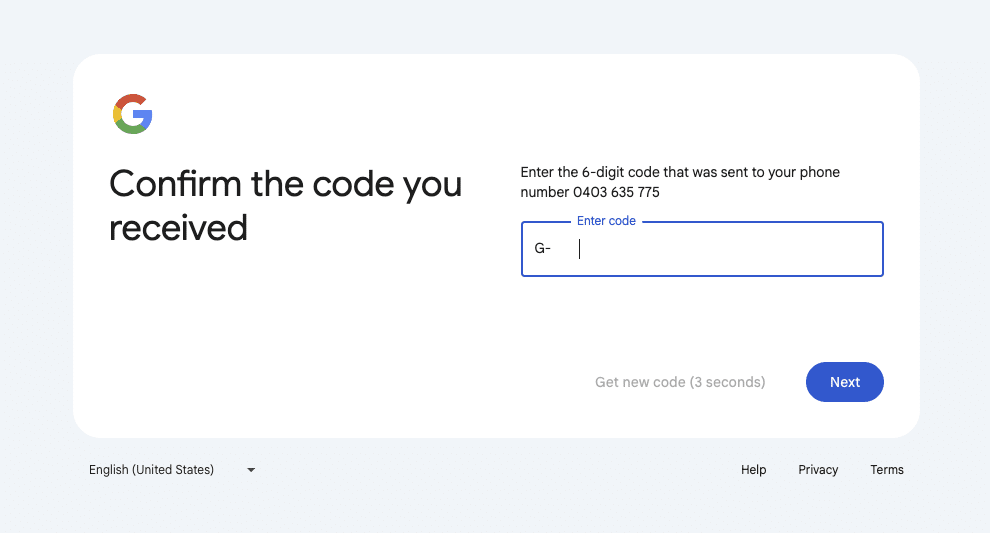
Google will prompt you to add your phone number again. If you like, you can opt to add your phone number to your account for use across Google services. If you do not wish to, hit skip.
Step 7: Review and Accept terms
Accept the privacy terms to complete the process.
Your new account is now ready to use. Hooray!
Step 8: Signing in later
To sign in later, head to https://myaccount.google.com/
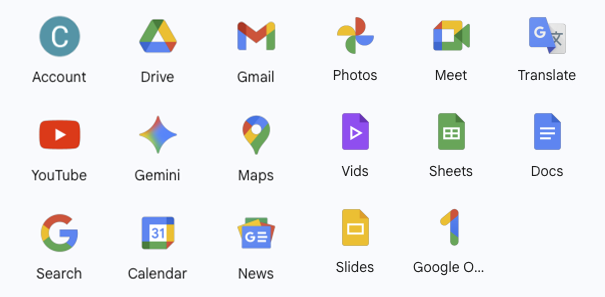
What You Can Now Access With a Non-Gmail Google Account
Your new account works the same as a Gmail based Google Account. It gives you access to key tools used by almost every business:
- Google Search Console
- Google Analytics
- Google Tag Manager
- Google Business Profile
- Google Ads
- Google Drive
- Google Meet
- Google Docs, Sheets and Slides
- YouTube and YouTube Studio
These tools support marketing, analytics, visibility and content creation. Businesses often prefer to link them to a central professional email.
Common Questions: Creating a Google Account Without Gmail
Is it safe to use a work email for Google?
Yes. Many businesses prefer it. It helps with account ownership, recovery and permissions.
Can I convert a Gmail account into a work email account?
No. You must create a new Google Account using your work email.
Can one person have multiple Google Accounts?
Yes. Many people have both personal and business accounts.
Do I need a Gmail email to use Google Analytics or Search Console?
No. Any Google Account will work, set up with whatever email address you’d like.
Why Arvo Recommends This Method for Clients
At Arvo, many of our projects involve helping clients set up Google Analytics, Google Search Console or Google Tag Manager. We often see access issues caused by personal Gmail addresses. By using a business email, clients maintain control and avoid common ownership problems.
If you need help with your Google tools, here are some Services offered by Arvo. Get in touch today – we’d love to help you out.
Final Tips for Managing Your New Google Account
- Enable two factor authentication for better security
- Store your password in a secure password manager
- Keep recovery phone numbers up to date
- Assign access to staff using the least required permissions
- Avoid mixing personal and business accounts
Conclusion
Creating a Google Account without Gmail is simple and useful. It allows you to keep your digital tools aligned with your business domain, improves access control and removes complications when managing teams or agencies. Once your account is set up, you can use it to access all of Google’s major products with no limitations.